 Formula Explainer
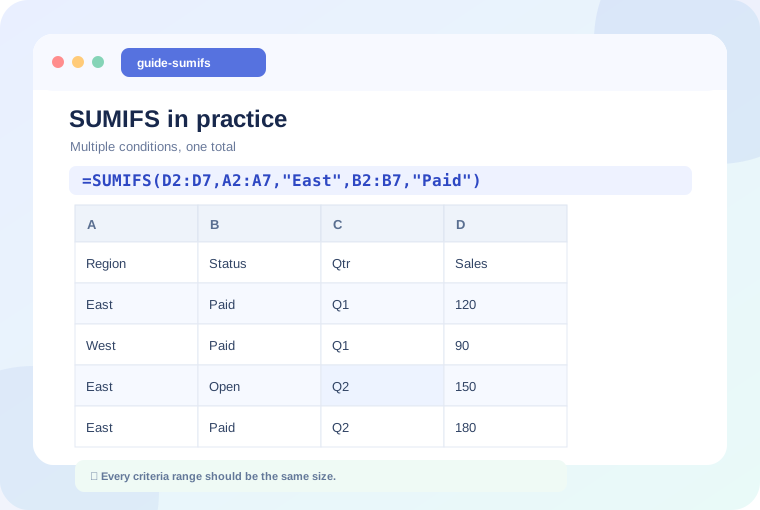
Example 1: Sum all orders from one region
Imagine a table with Region in column A, Status in B, Date in C, and Amount in D. If the records start at row 2, the following formula adds all amounts for East:
=SUMIFS(D2:D100,A2:A100,"East")Example 2: Apply two conditions
To include only East orders with status Paid, add a second criteria pair:
=SUMIFS(D2:D100,A2:A100,"East",B2:B100,"Paid")The criteria use AND logic: both conditions must be true for a row to contribute to the total.
Example 3: Use a date window
Suppose H2 stores the first date and I2 stores the last date of the reporting period. This pattern includes every calendar date up to and including I2, even where a cell contains a time of day.
=SUMIFS(D2:D100,C2:C100,">="&H2,C2:C100,"<"&(I2+1))Example 4: Refer to a criteria cell
Make the dashboard interactive by placing a selected region in G2:
=SUMIFS(D2:D100,A2:A100,G2,B2:B100,"Paid")Verify the result
Filter the source table to the same region and status. Add the visible amounts and compare them to the SUMIFS result. Check for text-formatted values, spaces in labels, and range size mismatches. Use COUNTIFS for a companion count of matching records.
A useful habit
Keep columns consistent, avoid mixing full-column ranges with smaller mismatched criteria ranges, and document what each output means. When the model grows, use Excel Tables to maintain readable, automatically expanding references.
Build a SUMIFS formula