 Formula Explainer
Start with the equals sign
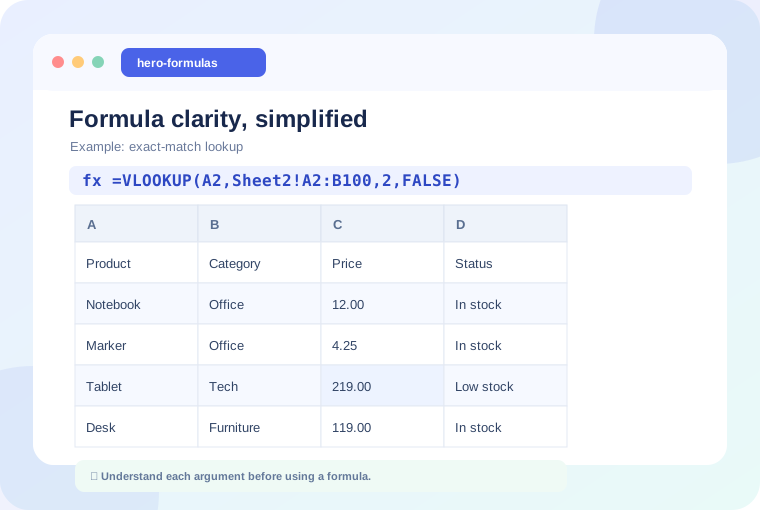
A formula starts with =. Everything after it tells Excel or Google Sheets to return a result. =A2+B2 adds two cells; =SUM(A2:A10) adds the numeric values in a range. Both are formulas, but only the second uses a named function.
Identify the function name and its arguments
In =IF(C2>=70,"Pass","Review"), IF is the function. Inside parentheses are three inputs: the condition, the result when true, and the result when false. Commas separate arguments in many locales; semicolons are used in others.
Read cell references carefully
A2 is a relative reference. $A$2 is an absolute reference that remains fixed when copied. A$2 fixes the row while allowing the column to change. $A2 fixes the column while allowing the row to change.
Understand ranges and sheet names
A colon means “through.” A2:A12 refers to eleven cells in column A. Sheet2!A2:B20 refers to a range on Sheet2. If a sheet name contains spaces, surround it with single quotes: 'Sales Report'!A2:A20.
Learn common operators
+,-,*,/perform arithmetic.>,<,>=,<=, and=compare values.<>means “not equal.”&joins text expressions.
Work from the inside out
For nested functions like =IF(AND(B2="Active",C2>=70),"Pass","Review"), evaluate AND first, then interpret the IF result. Use temporary helper cells if necessary; a simple, auditable workbook is often better than a formula no one can maintain.
Test an example yourself
- Put 82 in C2 and type
=IF(C2>=70,"Pass","Review")in D2. - Change C2 to 66 and observe the result.
- Use the formula explainer to break down the same statement.
- Replace the text outputs with values meaningful to your workflow.
What to learn next
Practice SUM, AVERAGE, COUNTIF, SUMIF, and basic lookup functions. Once those patterns feel natural, explore multiple-criteria formulas and error diagnosis. The goal is not to memorize every function; it is to recognize what question your spreadsheet is trying to answer.
Try the interactive explainer