 Formula Explainer
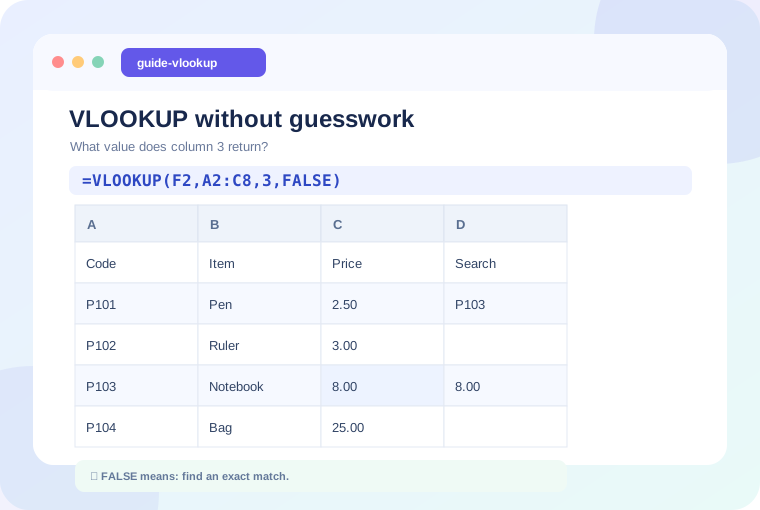
In this guide: We'll explain the concept with realistic examples and offer specific checks you can apply to your own spreadsheet.
What VLOOKUP does
VLOOKUP searches for a value in the leftmost column of a selected table. It then returns information from a column to the right in that same row. A common use is finding a product price from its unique code.
=VLOOKUP(F2,A2:C100,3,FALSE)Here F2 holds the product code. The table runs from A through C. The number 3 means the third column of that table, which is column C. FALSE asks for an exact match.
How to read the arguments
- lookup_value: What are you searching for?
- table_array: Where is the lookup table? The searched value must be in its first column.
- col_index_num: Which numbered column inside that table contains the result?
- range_lookup: FALSE for exact matching; TRUE for approximate matching, which requires special care and ordered data.
Why a formula returns #N/A
The key might not exist, or the values may have different types. For example, text "0012" and number 12 are not always interchangeable lookup keys. Extra spaces and inconsistent codes can also prevent matches. Compare a known key on both sheets and verify its data type.
Prevent a moving table range
If you copy the formula down many rows, lock the reference to the lookup table while allowing the lookup value to move:
=VLOOKUP(F2,$A$2:$C$100,3,FALSE)When XLOOKUP may be better
Modern versions of Excel support XLOOKUP, which can return columns to either side and does not require a column index. For example, =XLOOKUP(F2,A2:A100,C2:C100,"Not found") searches A and returns a corresponding value from C. Check version compatibility if the workbook will be used in older Excel installations.
Practice exercise
Create three columns: Product ID, Product name, and Unit price. Enter four unique IDs. Use VLOOKUP to find each item's price, then intentionally search for a nonexistent ID. Observe the result and check the lookup arguments one at a time.
Keep learning
Continue with a related guide or experiment using our interactive formula explainer.
Why Excel Formulas Return 0 (and How to Fix It) →
Practice with a formula