 Formula Explainer
About this edition: This independently rewritten article follows a topic and page address found on the public Formula Explainer blog. It is not an extracted Wayback snapshot.
Understanding the problem
A formula generator can be a convenient starting point, but the quality of its suggestion depends on the precision of the question. Describe the column layout, the desired output, and any exceptions before accepting a proposed expression.
Before changing a formula, write down what a correct result would look like and which rows, columns, or values should contribute to it. This prevents a quick fix from hiding an unrelated error elsewhere in the workbook.
Start with a concrete formula
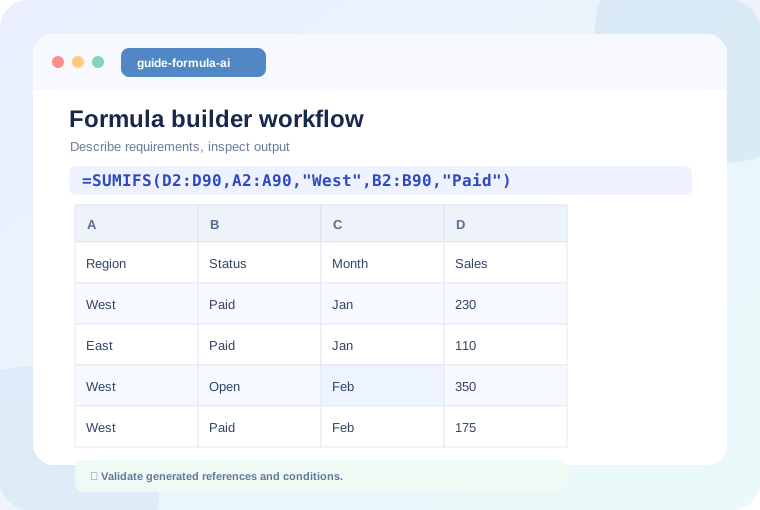
=SUMIFS(D2:D100,A2:A100,"West",B2:B100,"Paid")This example sums values in D for rows where column A is West and column B is Paid. The output depends on exact criteria and on ranges being aligned. A generator cannot confirm your actual column structure unless you provide it.
Read the expression from its inner operations toward the outside, paying attention to references, quoted text, and the conditions that determine which values are included. If your spreadsheet uses semicolon separators, adapt the example to your regional settings.
A practical troubleshooting method
Ask the tool for a formula, an argument-by-argument explanation, and at least one edge case. Then test the suggestion with known rows, blanks, duplicate values, and entries that do not meet the conditions.
- Duplicate the worksheet or save a new version before experimenting with an important workbook.
- Compare the expected result with the actual result using a small sample whose answer can be checked by hand.
- Check numeric and text formats and confirm that each cell reference points to the intended data.
- Test intermediate expressions separately, then put the full formula together again.
- Copy the correction into representative rows and check that relative and absolute references behave as expected.
Practice the concept
The offline builder in this ZIP uses predefined templates rather than a live AI service. Treat generated formulas as editable examples and check them inside Excel or Google Sheets.
For best results, test one normal case, one boundary case, and one intentionally invalid case. A formula becomes trustworthy when the expected outcomes are explicit and reproducible.
Common pitfalls to avoid
- Assuming the displayed data type: values may look numeric even when stored as text.
- Hiding a calculation error: use IFERROR only when you have decided how failures should be handled.
- Ignoring worksheet context: a correct expression pointing to the wrong range is still a wrong calculation.
- Skipping version checks: some functions are not supported in older Excel or Sheets versions.
Summary and next step
The reliable approach is to understand each argument, validate the input data, and confirm the intended result with a small experiment. Use a helper column when it makes the logic easier for another person to review. You can also copy the example into the browser-based explainer to explore its structure.
Try this in Formula ExplainerMore from the learning library
Continue with related explanations, troubleshooting checklists, and spreadsheet examples.
View all guides →