 Formula Explainer
In this guide: We'll explain the concept with realistic examples and offer specific checks you can apply to your own spreadsheet.
Every Excel error is a clue
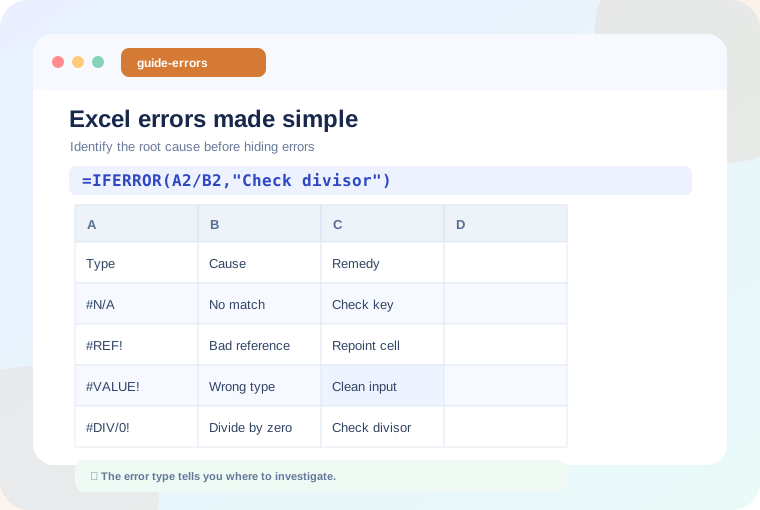
An error message does not automatically mean the entire spreadsheet is broken. Often, it points to one reference, one incompatible input, or one assumption that is not true. Fixing the cause usually makes the workbook more reliable than simply hiding the result.
#VALUE!: An incompatible type or operation
This may occur when a formula expects a number but receives unsuitable text. Check pasted values, dates, and function parameters. Test questionable cells with ISNUMBER and ISTEXT.
#REF!: An invalid reference
This error commonly follows deleting a referenced row, column, or sheet. Locate #REF! inside the formula and reconnect it to the intended cells. Prefer structured references or carefully planned source ranges in workbooks with frequent layout changes.
#N/A: A lookup found no match
Confirm the key exists, use exact matching where appropriate, and inspect spaces or mismatched data types. For XLOOKUP, an explicit not-found argument can provide a readable message once you know that missing records are expected.
#DIV/0!: A zero denominator
For =A2/B2, the problem occurs if B2 is zero or blank. You can guard a deliberate calculation with =IF(B2=0,"Not available",A2/B2). Choose a fallback that makes sense for your report rather than treating an undefined ratio as zero.
#NAME?: An unknown function or name
Check the spelling of function names, the use of quotation marks around text, and whether a named range exists. A function available in a newer version of Excel may not work in an older version.
#SPILL!: A blocked dynamic array
Functions such as FILTER and UNIQUE can return many results. When the target cells contain other content, Excel may show a spill error. Clear the blocking cells only after confirming they are not needed, or move the formula.
Should you use IFERROR?
IFERROR is useful for handling an anticipated error, not for concealing mistakes. For example, a not-found message might be suitable when a record is genuinely optional. During troubleshooting, inspect the underlying formula first so that a bad reference does not look like a normal missing record.
Keep learning
Continue with a related guide or experiment using our interactive formula explainer.
Why Excel Formulas Return 0 (and How to Fix It) →
Practice with a formula